September 30, 2026
This article records a simple method for creating an AutoCAD Dynamic Block that adds a grip to a 100 × 100 rectangle, allowing the rectangle to be stretched vertically.
The basic structure consists of a
Linear Parameter associated with a
Stretch Action.
Main Commands
RECTANG
@100,100
BLOCK
BTESTBLOCK
Procedure
- Use the
RECTANG command to create a rectangle. In this example, enter @100,100 to create a 100 × 100 rectangle.
- Use the
BLOCK command to convert the rectangle into a block, and then open it in the Block Editor.
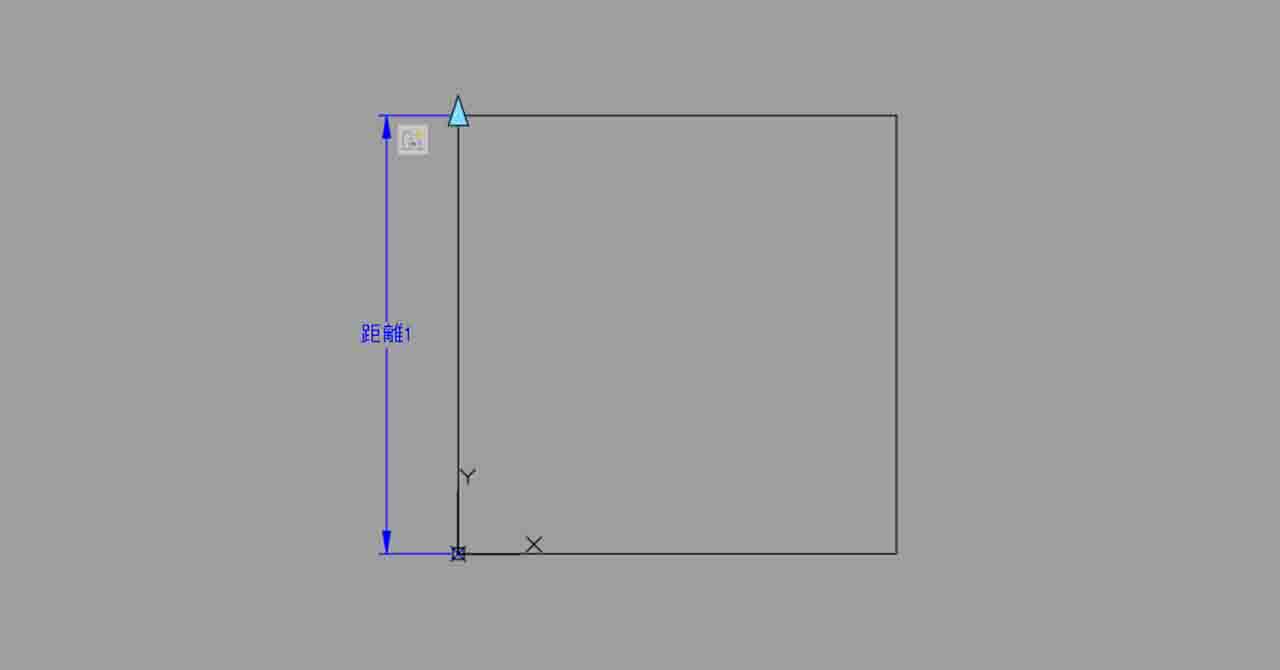
- Select Parameters → Linear, and place the parameter vertically from the bottom to the top of the rectangle.
- Select the created parameter, such as “Distance1,” and set Number of Grips to 1 in the Properties palette.
- Select Actions → Stretch.
- When prompted to select a parameter, select “Distance1.”
- When prompted to specify the parameter point, select the upper point. In this example, this is the second point.
- Specify the stretch frame so that it includes the two upper vertices and crosses the left and right vertical edges of the rectangle.
- When prompted to select the objects to stretch, select the rectangle. If the rectangle was created with
RECTANG, AutoCAD should recognize it as one object.
- Use
BTESTBLOCK or Test Block to verify the behavior. Move the upper grip and confirm that only the height of the rectangle changes while the bottom edge remains fixed.
Windows and Mac Versions
The Windows and Mac versions of AutoCAD have different user interfaces and operation methods, but the basic Dynamic Block workflow confirmed in this example is the same.
The workflow is:
- create a Linear Parameter,
- specify the adjustable grip,
- associate a Stretch Action,
- define the stretch frame and affected objects, and
- move the grip to verify the result.
Even when the interface looks different, the underlying idea is the same:
the parameter defines the direction or amount of change, and the action defines how the geometry responds.
Tested with: AutoCAD 2025 for Windows / AutoCAD 2025 for Mac